
Committee Invoice Approvals
Invoice Approval lets your committee members review and approve invoices directly in the PropertyIQ Portal, replacing approval-by-email.

We've also prepared this article if you'd like to send a guide to your clients for this new release.
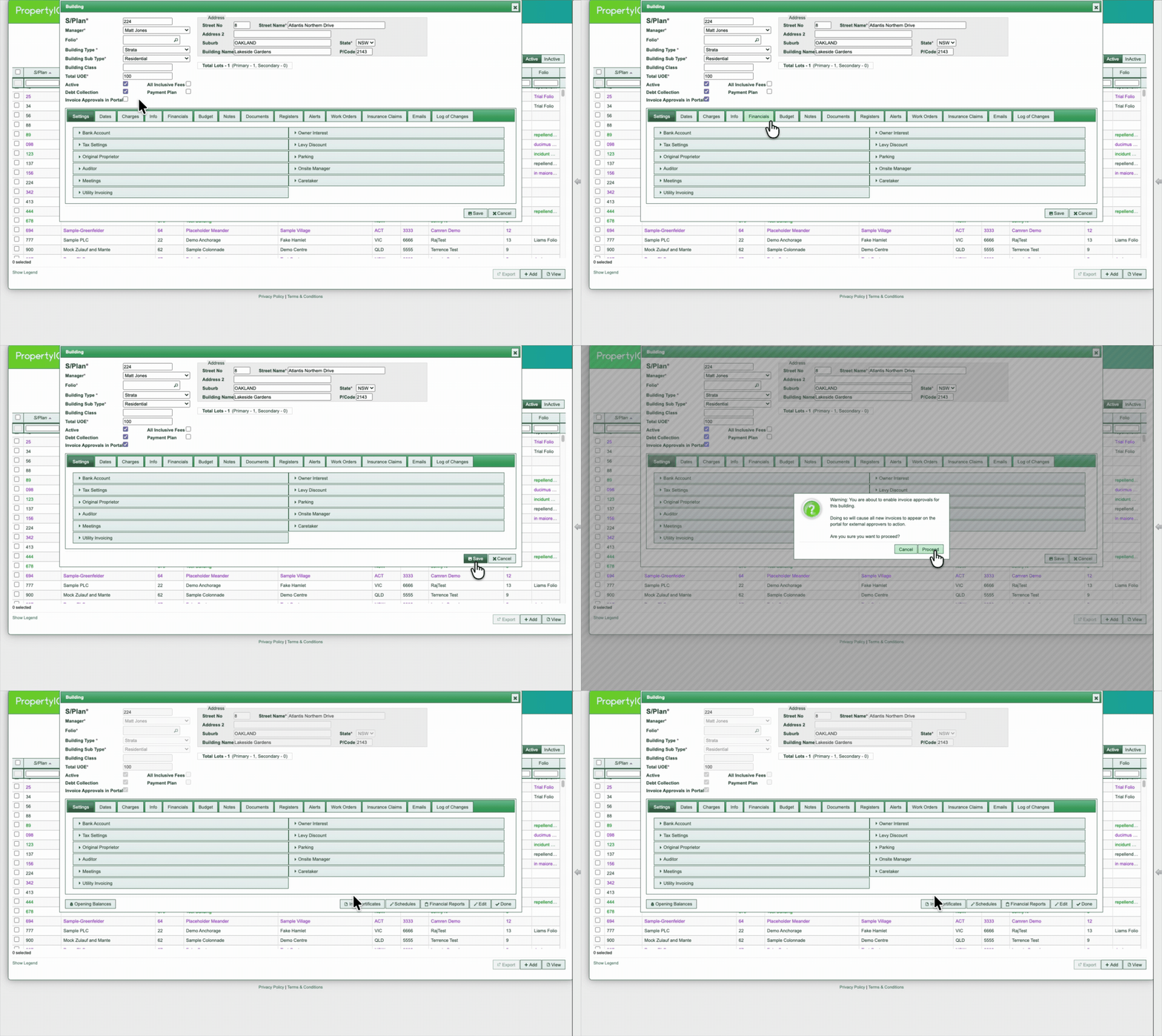
Enable Approvals
Invoice Approvals requires your users to have completed migration to single sign-on (SSO) first. Once enabled, you can control the rollout building by building.
To turn the feature on for a building:
- Log into PropertyIQ
- Open the building you want to enable
- Turn on “Invoice Approvals in Portal”
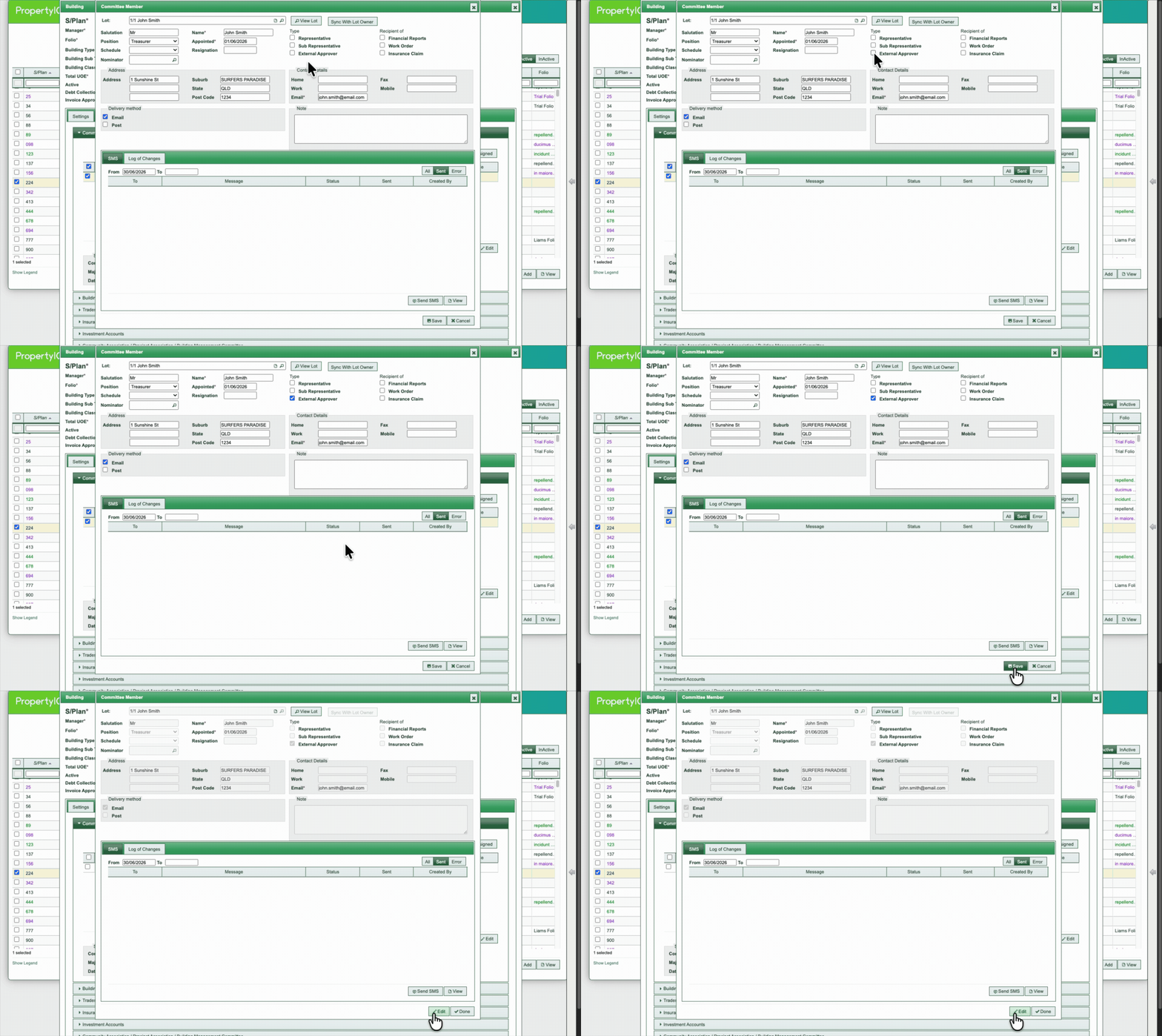
Set Up Your Approvers
For a committee member to approve invoices, they need to be marked as an approver:
- Open the building's committee in PropertyIQ
- Locate the committee member
- Check the External approver flag
- Register them to the Portal
You can mark more than one committee member as an external approver but invoices need over 50% of portal registered external approvers to approve.
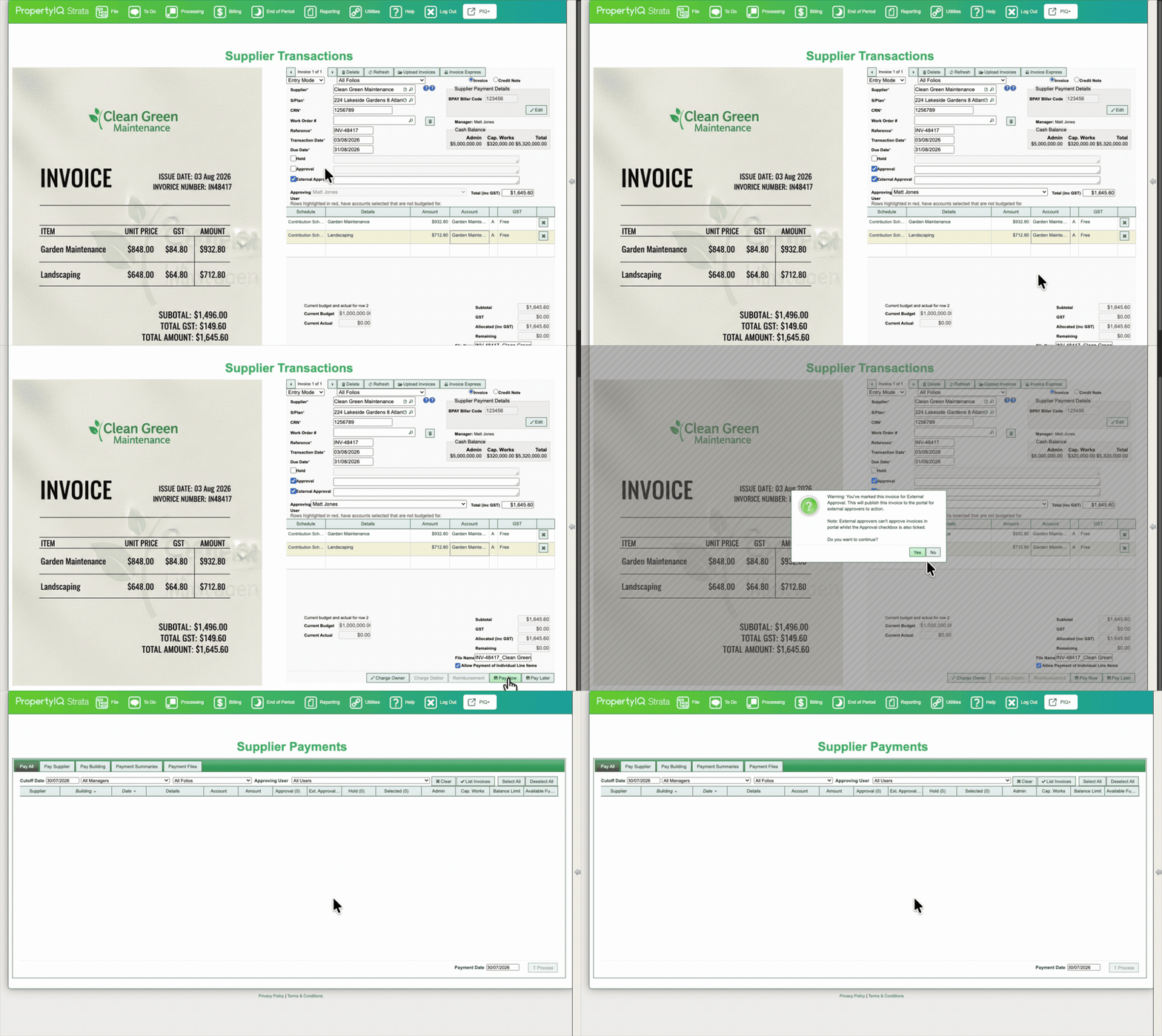
How It Works
The approval process runs in a single, sequential flow driven by two checkboxes on the PIQ invoice:
- Invoice review (internal) - you or your accounts staff approve the invoice internally first.
- Committee approval (external) - once internal approval is complete, untick Approval and tick External approval to send the invoice to the committee.
- Pending payment - the invoice is approved once more than 50% of the assigned committee approvers have approved it. It then moves to Pending payment, with both Approval and External approval unticked, and is ready to pay. Hold can be used to flag invoices that are not ready for payment.
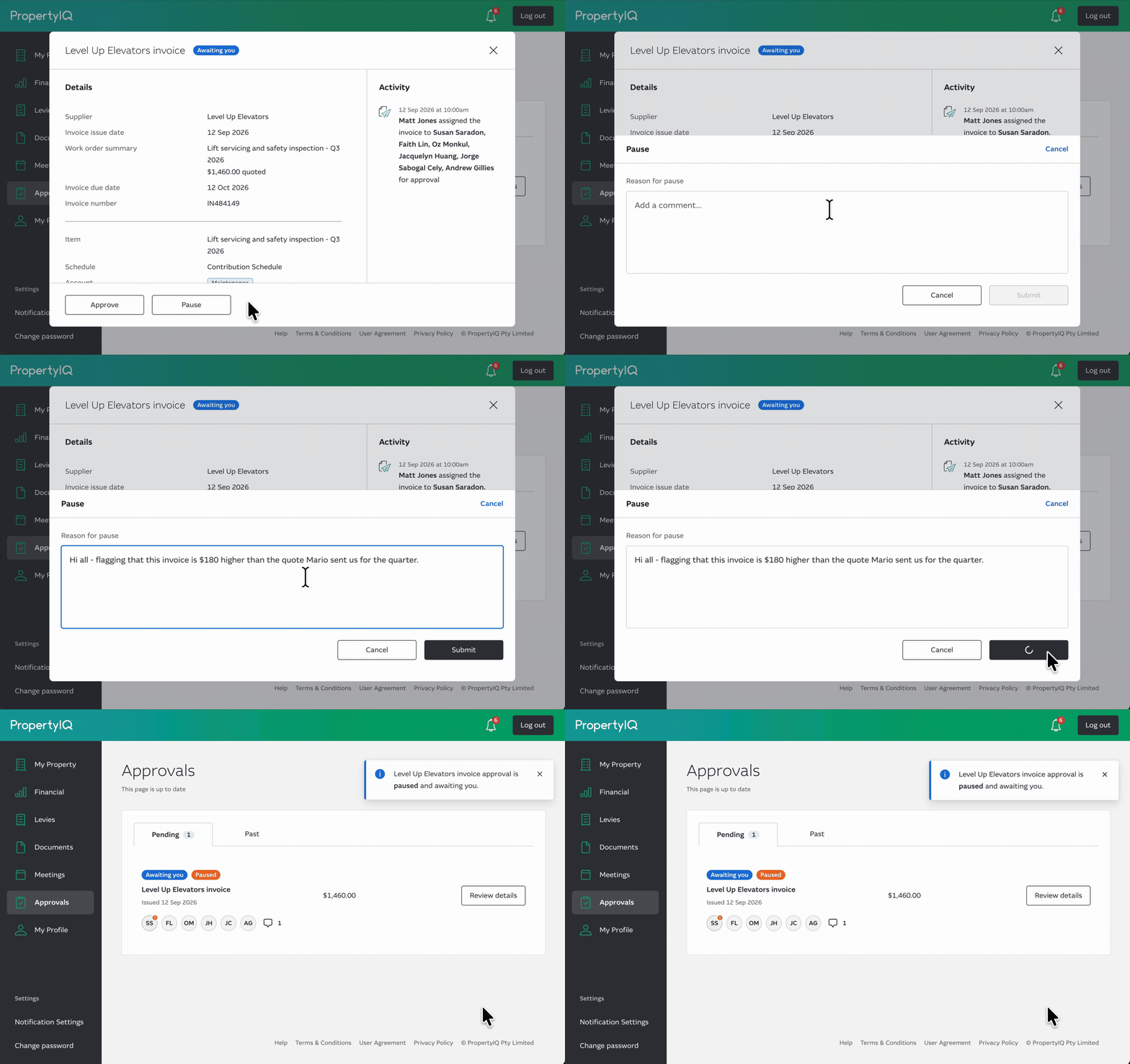
Pause and Reply
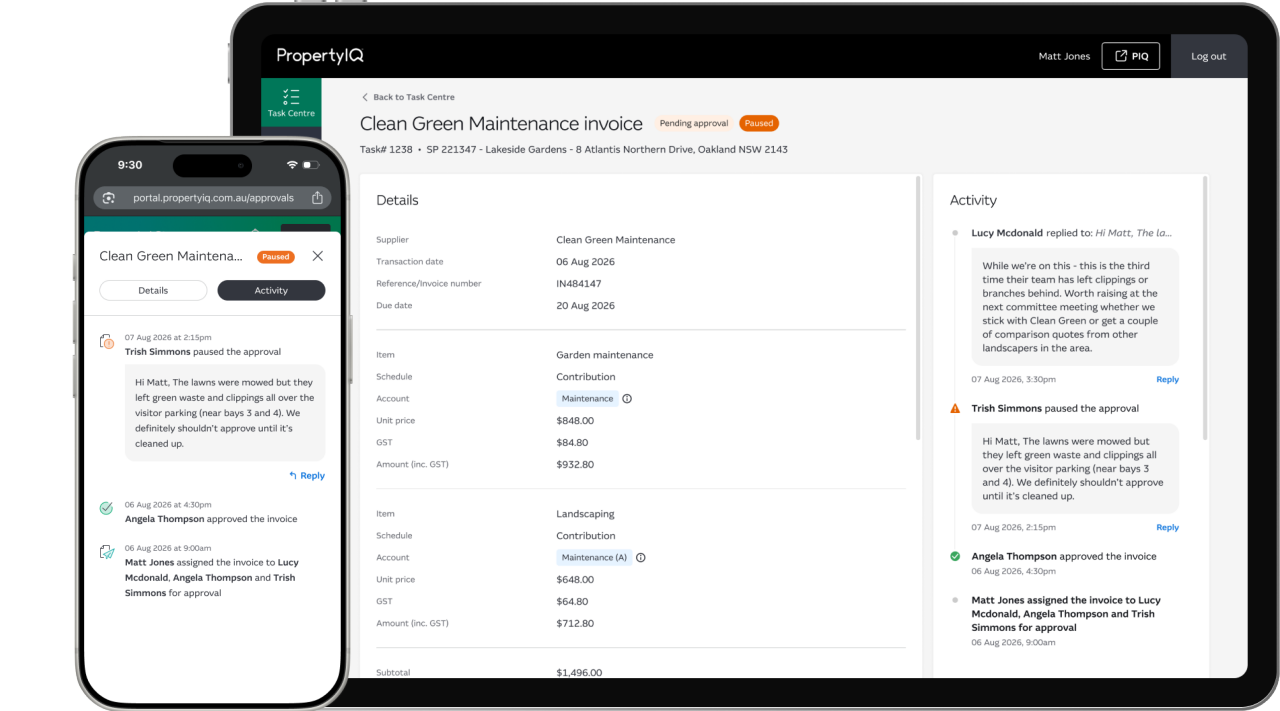
If a committee member needs to query an invoice, they can Pause it (with a comment explaining why) - the committee member can unpause by approving or you can update the process with the above checkboxes. Other committee members cannot approve a paused invoice. Comments can be replied to via PIQ+.
Track Activity
Every invoice carries an activity feed recording its full history - who did what, and when. Committee members see the relevant part of this feed in the Portal, and you see the complete feed in PIQ+.
You can monitor all invoice-approval activity from the PIQ+ task centre, which lists every invoice-approval task with its status and any committee comments. You can filter by status, sort, and see an unread indicator for new activity, so you always know which invoices are moving and which are waiting on the committee.
Who Can See It?
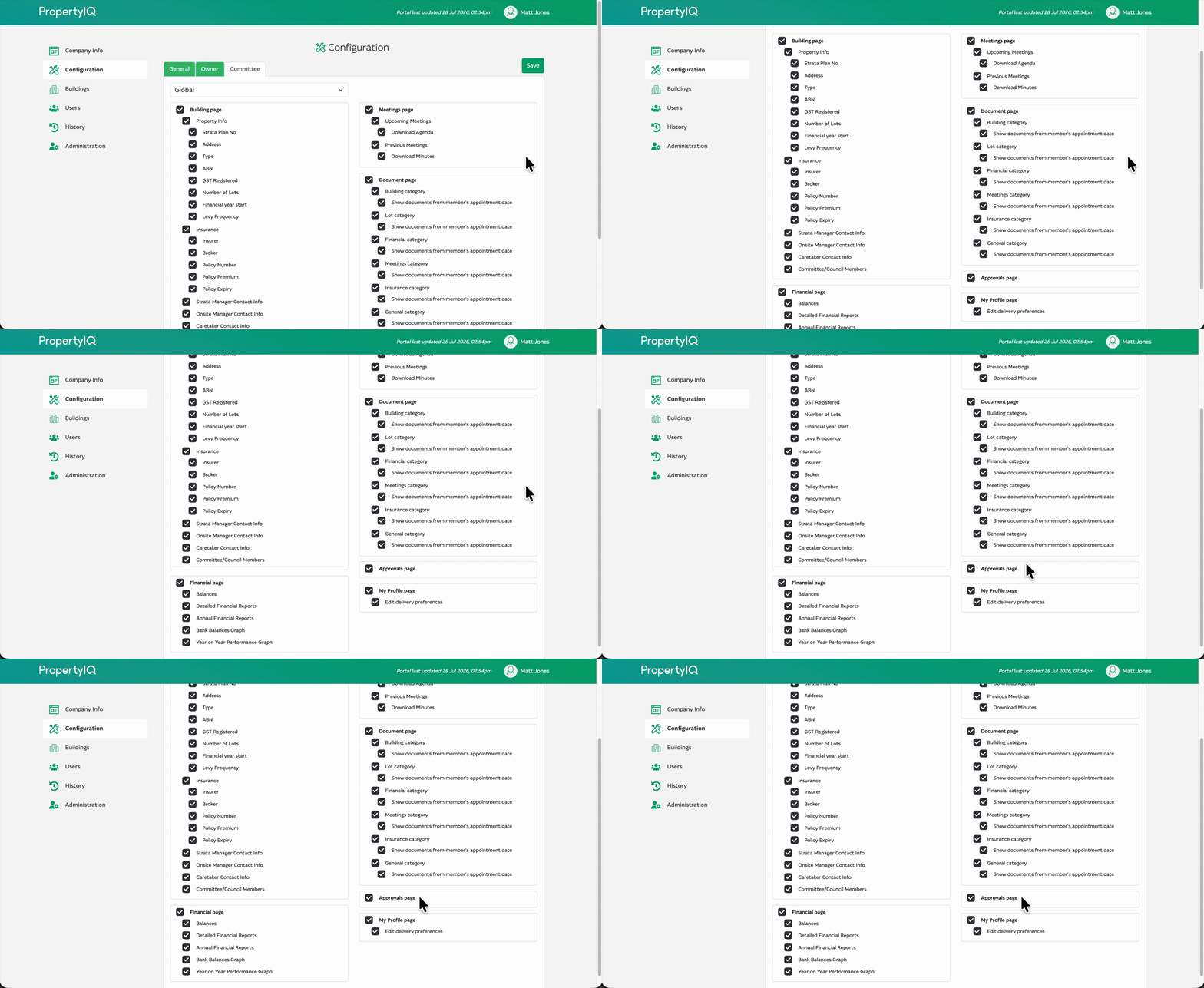
In your Portal Configuration you decide who sees the Approvals page in the Portal:
- Committee members - Enabled by default. Any committee member of the building can view its pending and past invoices; only those marked as external approvers can actually approve or pause. This is required for external approvals.
- Lot owners - Disabled by default. If enabled, owners can view their building's invoices and activity, but they cannot approve or pause.